Everything a shift change has to get right
The schedule, the rules it has to follow, the people allowed to change it, and the hours everyone works.
Coverage rules
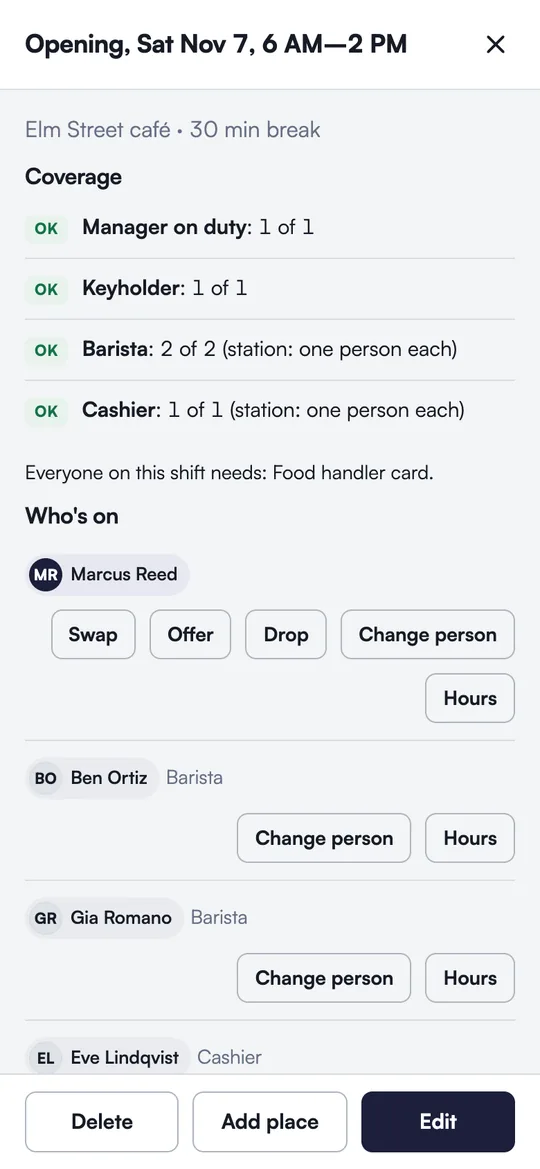
Tell EveShift what each shift needs, and it holds every change to it.
- On the floor: at least one manager on duty, one keyholder. One person can cover both.
- Stations: two baristas and a cashier means three different people. Someone trained for both still counts once.
- Certifications: food handler card, CPR, a nursing license. They count until the expiry date you record, and not a day after.
- Everyone on it needs: for a kitchen shift, nobody without a current food card can take a place.
- Set defaults per location, override them per shift, save them in templates.
- BlockedFinn Carter can't take Closing Fri 2–9 PM: it needs Food handler card, and Finn Carter's expired Oct 19.
- OKManager on duty: 1 of 1 · Keyholder: 1 of 1 · Barista: 1 of 1
Swaps, offers, pickups, drops
- Swap with a coworker: they accept, then it goes through or to a manager.
- Offer a shift to one person or to the whole team. The first person who passes the rules gets it.
- Pick up an open place, if you're qualified and free.
- Drop a shift when you can't make it. It opens for others, and a manager knows. If nobody can cover it, it isn't a dead end: send it to your manager anyway, or say you can't make it because you're sick, and it lands in their approvals.
- When something is blocked, EveShift lists who could cover and which swaps would pass, with each person's hours that week.
- Requests that have become impossible (the shift changed hands, the shift started) close on their own.
Change the schedule without starting over
- Edit a shift in place: new hours, a different location, the role each place is posted for. The people on it stay on it.
- Different hours for one person: Ben comes in at 8 instead of 6? One step, and the rest of the shift stays as it is.
- Change who works it: the list opens with everyone already checked: who's ready, who can with a heads-up (overtime, rest, their availability), and who can't and why. One tap, and the person who had it comes off.
- Undo: every change has an Undo button, for a moment after it and in the change history. An undo never double-books anyone or puts them on approved time off, and everyone on a published shift hears what moved.
- Several shifts at once: pick them, then delete them or take everyone off. One undo puts them all back.
- ReadyPriya Shah · Barista, Keyholder · 28 h that week
- Heads-upIvy Chen would work 46.5 h in the week of Nov 2, over 40 h.
- Can'tGia Romano is already on Opening Sat Nov 7.
Help from inside the app
- Write to us from More → Help and support, with a screenshot if it helps. The phone shrinks it before it's sent.
- The app version and the screen you came from go with it, by name only. Never your pay, your schedule or anyone else's details.
- See the status and every answer in the app, get an email when we answer, reply or close it. In English or Spanish.
- Your schedule stays yours: we only see a team's week if an owner or admin lets us, for 1, 3 or 7 days, read only. Every look shows in the team's history, and you can turn it off at once. We never see pay or where anyone clocked in.
- YouCan I swap a café shift for a kiosk one?
- EveShiftYes: offer your café shift and pick up an open kiosk place. Both go through the same rules.
Schedule views
- One shift card everywhere: start and end, how long, the shift's name and place, and its status in a word and a symbol (covered, short, draft, still on shift), never color alone.
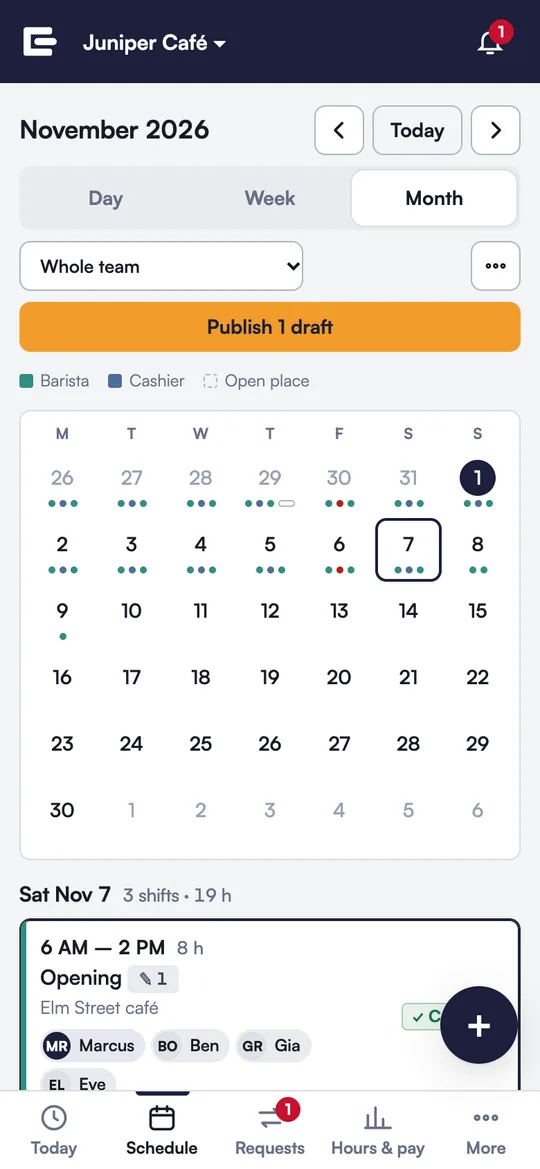
- My shifts: every job in one calendar. On a computer the week sits on a time axis with the current time marked on it; on a phone, a day list with dots on the days that have shifts.
- Whole team: by shift, or by person with open places first, each person's hours against their limit, and a coverage line for each day. Filter by location, role or person.
- A real month: a calendar grid with today marked and the month's name on top; on a phone, a compact month with dots and the chosen day's shifts under it.
- With clock-ins: your own punches over your shifts, or the team's for people who chose to share theirs. Sharing is off until each person turns it on.
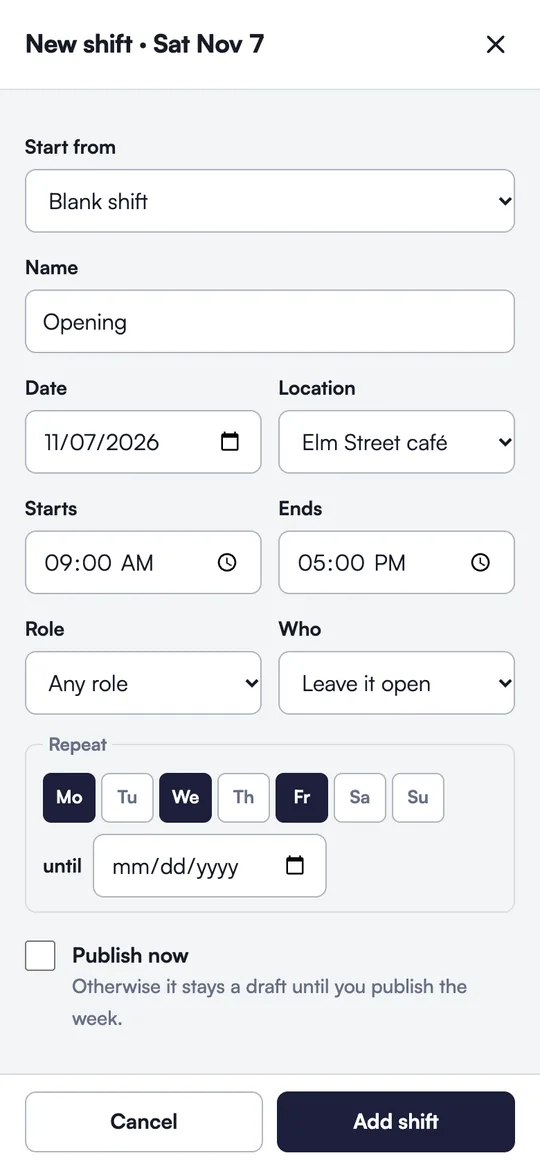
- Add from any day: tap a day or an empty hour and the form opens with that date. Repeat on weekdays until a date, copy a shift to other days, or put someone on it right away; each one is checked against the rules. Managers can drag a shift to another day or person, and every change can be undone.
- Your look: Neutral, Dark, High contrast or Warm, following your device until you pick one; compact rows on a computer, keyboard shortcuts, and a week that prints on one page.
- Who's on shift now, and hours this week: your team decides whether everyone sees it, nobody but managers, or each person chooses for themself. Clock-in times still only show for people who share them.
Clock in and out
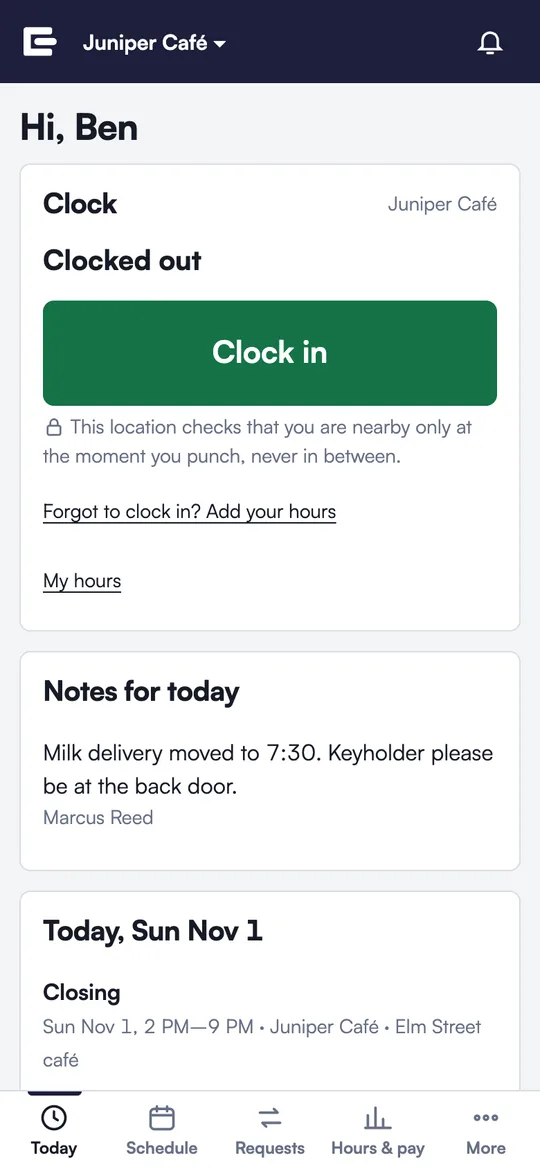
One big button on the Today screen. Each location sets clocking to off, optional or required.
- Works without signal. A punch made offline stays on the phone and is sent when the connection comes back.
- Location check only at the moment you punch, if the location turns it on and you agree. EveShift keeps "inside" or "outside" and a rounded distance. It never tracks you between punches.
- Breaks are punched too, with a reminder when a state meal or rest break may be due.
- Every fix has a reason. Anyone who changes a punch says why, and the employee sees the original time next to the change.
- Forgot to clock in? Add the hours you worked, start and end, from Today or My hours. They're marked as added, and your manager sees it. It works where clocking is off, too.
- A clock-in with no clock-out counts nothing once the shift is over, until the clock-out is added. It's flagged to be fixed, and a manager has to confirm before approving hours over it.
- Timesheets show managers late, missed and edited punches for each pay period. Managers approve the hours worked so far and export them as a spreadsheet for payroll. Hours only.
Your hours and pay, private to you
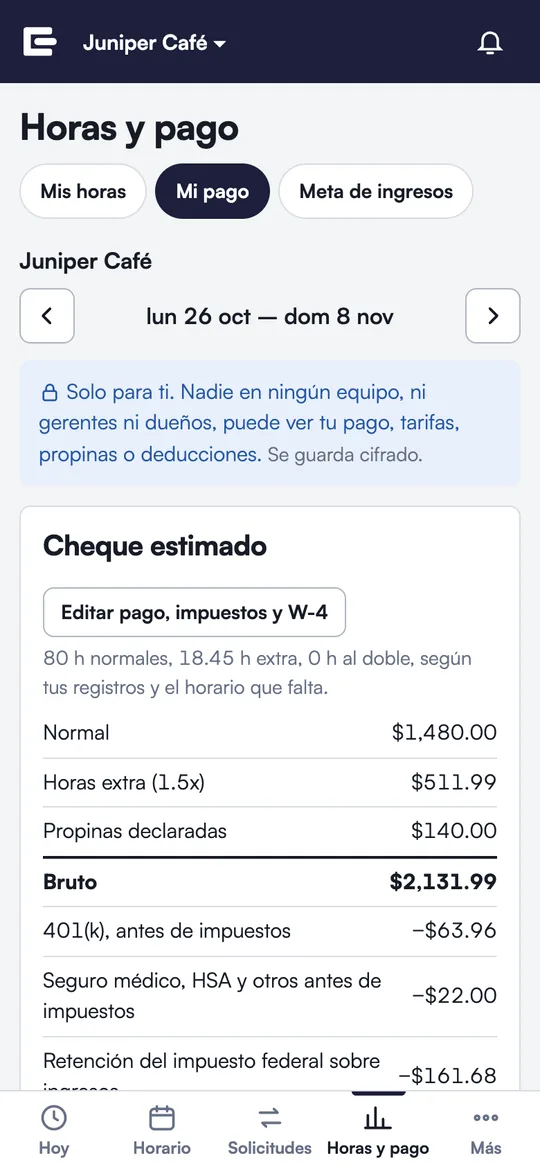
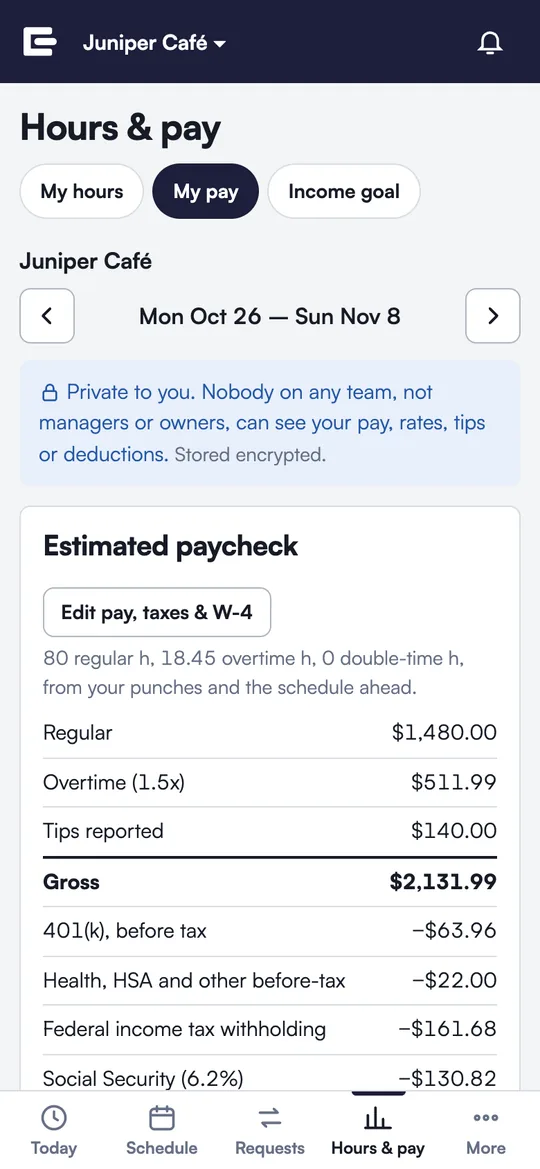
Sign up on your own, add each job (paste its calendar link or type the shifts) with its pay right on the job: an hourly rate or a yearly salary, and tips. Set its pay period: weekly, every two weeks, twice a month or monthly (a team's job follows the team's). Join a team later if you want; your other jobs stay yours, and an old job can be archived with its history kept.
- Hours from your schedule and your punches: regular, overtime, breaks, missed and extra time.
- An estimated paycheck: hourly or salary, federal and California overtime, tips, shift differentials, 401(k) and health deductions, Social Security, Medicare, federal withholding from your W-4, and state tax where it can be worked out.
- Year to date from the hours you've actually worked (shifts still ahead don't count), a spreadsheet download, and a monthly income goal across all your jobs.
- Private. Your pay settings are encrypted at rest and private to you. Managers, owners and coworkers don't see your pay. A team can give one role permission to see hourly rates; it's off by default, every look is logged, and you see who has it.
It's an estimate to check your pay stub against, labeled with the tax year and its sources. It isn't tax advice.
Approvals your way
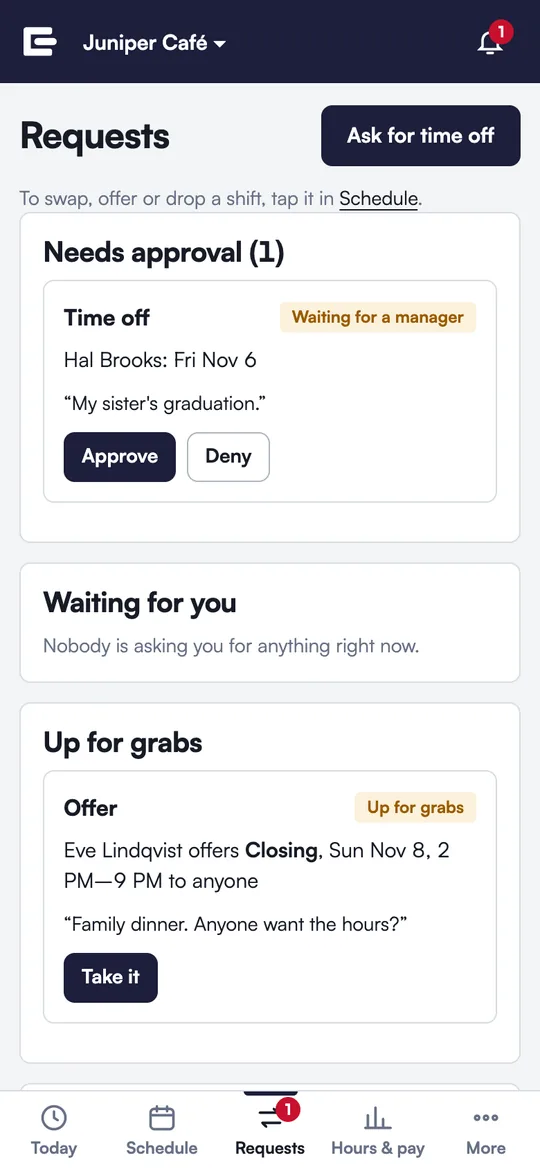
For each kind of request (swaps, offers, pickups, drops, time off) choose whether a clean request goes through on its own or waits for a manager. Then decide:
- whether the other person accepts a swap first;
- whether a coverage break is stopped or sent to a manager;
- whether overtime needs a manager;
- how close to the start a change always needs a manager.
Shift leads can approve requests that pass every rule. Managers can also approve one a coverage rule blocks, with a note that goes in the history.
Calendar sync, with privacy
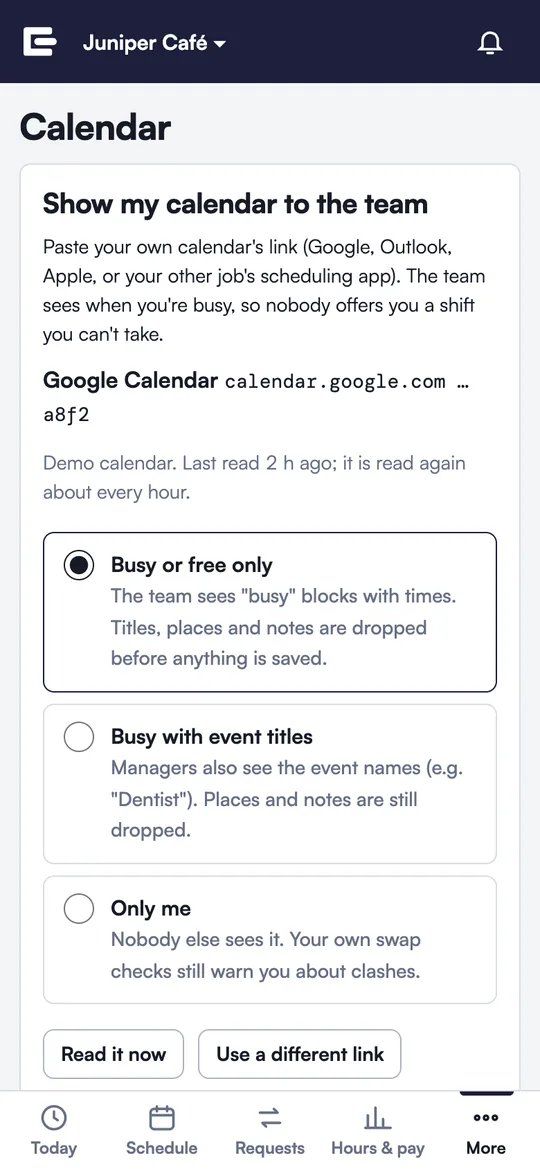
In: each person can paste the private link of their own calendar: Google, Outlook, Apple, or another job's scheduling app. Repeating events, time zones and all-day events are read the way your calendar shows them. Each person picks what the team sees:
- Busy only (the default): times, no titles. Titles, places and notes are thrown away before anything is saved.
- Busy with titles: managers see event names too.
- Only me: nobody else sees it; your own swaps still warn you about clashes.
Out: a private link puts your shifts (or, for managers, the whole team's) in any calendar app. A personal link brings every job and every team you're on into one calendar. Make a new link and the old one stops working.
Roles and permissions
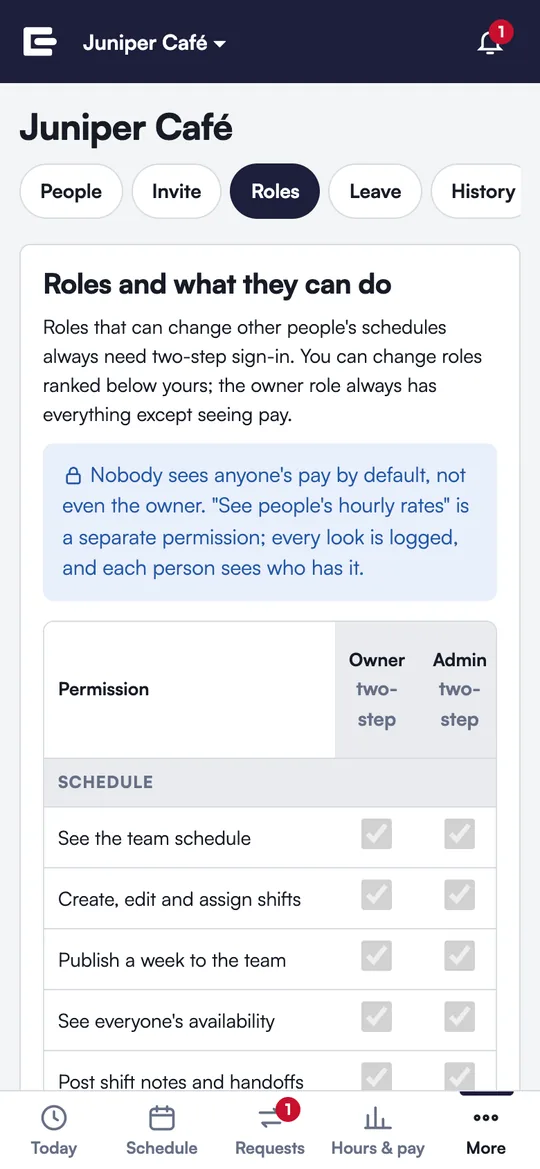
Six roles to start with: owner, admin, manager, shift lead, staff and viewer. Add your own (a trainer who records certifications, a regional manager who only reads) and tick what each can do in a permission matrix.
- Nobody can hand out more power than they have, or change someone ranked above them.
- The owner can't be demoted or removed by anyone else.
- Viewers see the schedule and nothing else.
- Nobody sees pay by default, the owner included.
- Set up with the team: right after you create it, pick what each role can do from a starting point (managers run the schedule, the owner keeps control, or leads help build the week) and adjust any role. Change it later under Team → Roles.
- Cover the roles under them: by default managers and shift leads can work any station, like barista or cashier, without being listed for it. Never a key, a manager-on-duty place or a certification.
- A checklist for a new team: invite people, add skills and certificates, add or copy shifts, publish. If your starter shifts need a certificate nobody has yet, it says so.
- Templates, roles and pay rates in the app: add and edit shift templates, remove a custom role nobody uses, and give payroll a screen with the hourly rates people entered, every look recorded.
- Leaving a team is one step: future shifts open up, the team keeps the hours you worked and you keep your copy. An invitation brings you back.
Two-step sign-in
- Authenticator apps (Google Authenticator, Microsoft Authenticator, 1Password, Authy) with ten one-time backup codes.
- Passkeys: Face ID, Touch ID, Windows Hello or a security key. They only work on EveShift's own site, so a fake page can't steal them.
- Required for anyone who can change other people's schedules; encouraged for everyone.
- Repeated wrong passwords or codes lock sign-in for 15 minutes. Changes to your sign-in methods are emailed to you.
Your account
- OnAuthenticator app · 10 backup codes
- OnPasskey: iPhone, added Oct 31
- NoteChanging your password signs out your other devices.
Labor rules by location
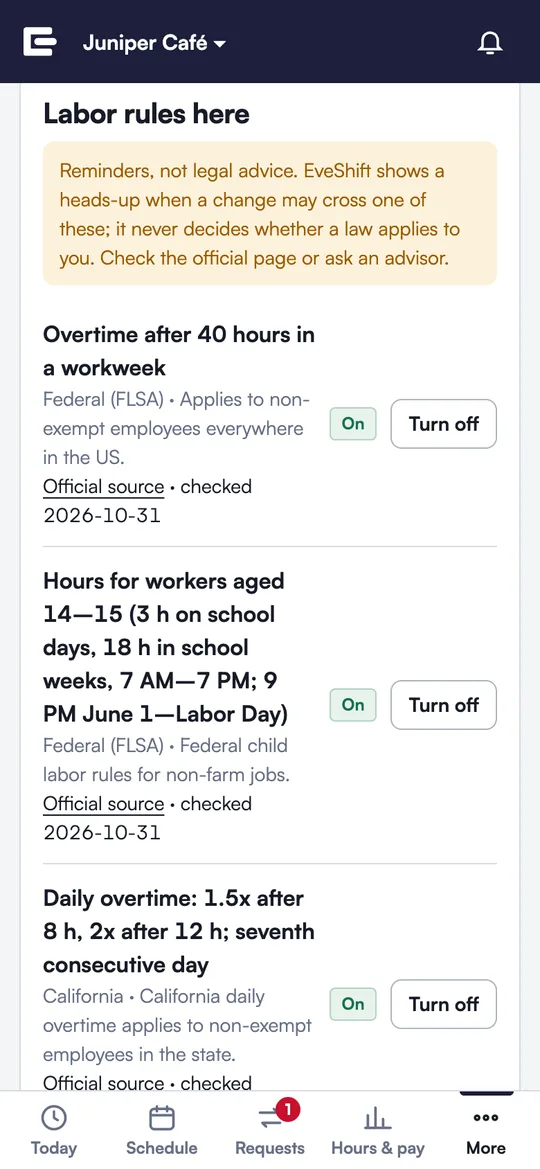
Rules follow where the work happens. Enter a location's address and EveShift finds its state, county and city, asks the few facts some local laws depend on (industry, employer size, number of locations, franchise), and turns on the rules that match. Each one says why it's on and links the official page.
- federal weekly overtime and the hour limits for 14- and 15-year-olds;
- daily overtime, and meal and rest breaks, in states that have them;
- paid sick leave minimums, next to your own leave policy;
- advance notice and rest between shifts in cities with scheduling laws.
An admin can turn a rule off with a reason, which goes in the history. Age and hourly or salaried are the only facts kept about a person for these rules, and only managers see them.
EveShift's labor rules are reminders, not legal advice. They show a heads-up when a change may cross a rule; they never decide whether a law applies to your business. Check the official page or ask an advisor.
PTO and sick leave
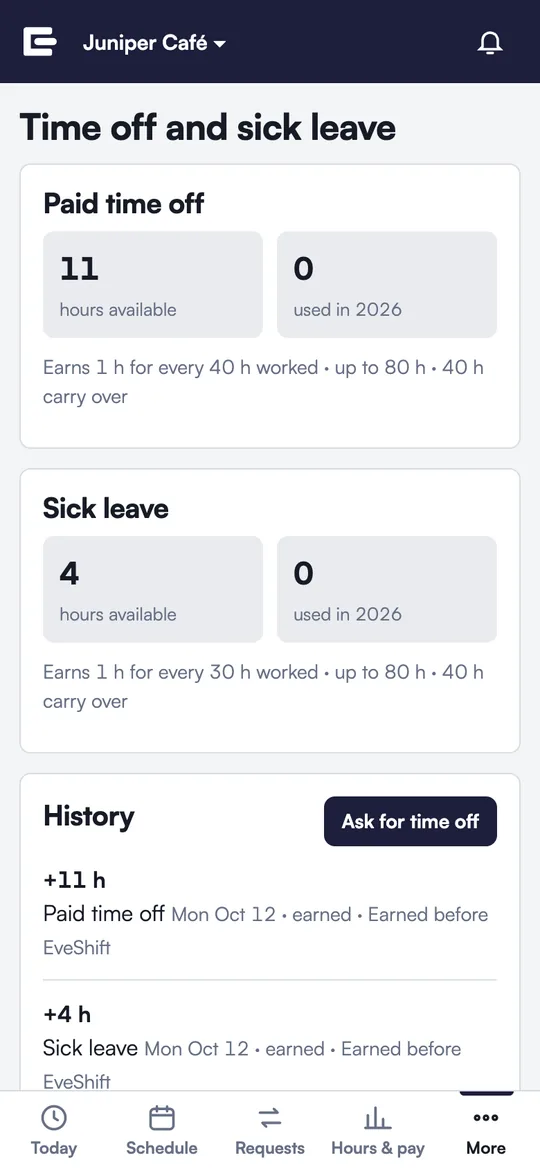
- Policies with an accrual rate (for example 1 hour per 30 worked), a cap, carryover and a yearly limit.
- Hours are earned when a manager approves worked hours, so balances match the timesheets.
- Time off can use a balance, and the request shows what's left after it.
- Everyone sees their own balances and history; managers can adjust one with a note.
Availability, open shifts and notes
- Availability: each person marks when they can and can't work, every week or on dates, and which shifts they prefer. Managers get a warning when they schedule someone outside it.
- Open-shift alerts: when a place opens, only people who could take it hear about it: the right role, free, and no overtime or short rest. The first to claim it gets it, with approval if your team wants that.
- Shift notes and handoffs: "Milk delivery moved to 7:30" on the shift it's for, with optional read receipts. Notes can also go on a day or on a location until someone removes them.
- AlertAn open shift fits you: Opening, Wed 6 AM–2 PM. First to claim it gets it.
- Heads-upFinn marked Tuesday evenings as unavailable.
- ReadMilk delivery moved to 7:30. Read by Ben, Gia, Eve.
Notifications and history
- In-app notifications for requests, approvals, new schedules and changes to your shifts. Email too, if you want it.
- A change history that shows who changed what and when, including every override and its note.
- Copy last week, publish a week at once, and print the schedule.
History
- PunchMia Chen changed Ben's clock-in from 6:09 to 6:00 AM: "Badge reader was down."
- ApprovedMarcus Reed approved Hal Brooks's time off, Fri Nov 6.
- OverrideDana Wright approved a swap a coverage rule blocked: "Priya is covering the key."
English and Spanish
Each person picks their language. The whole app, the rule explanations, notifications and emails follow it, so a manager can work in English while a cook reads the same schedule in Spanish.